


Kodi
3.723.78K Reviews
App Specs
- Version
- 21.2
- Updated On
- License
- Free
- Downloads
- 50,000,000+
- Developer
- Kodi Foundation
- Categories
- Video Players & Editors
- Platform
- Android, iOS
Screenshots
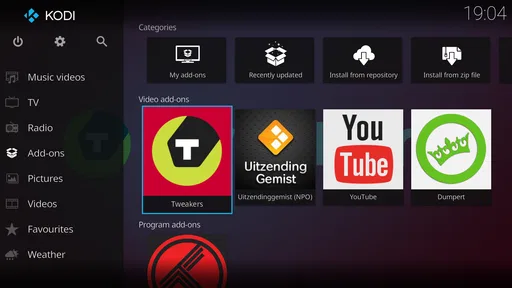
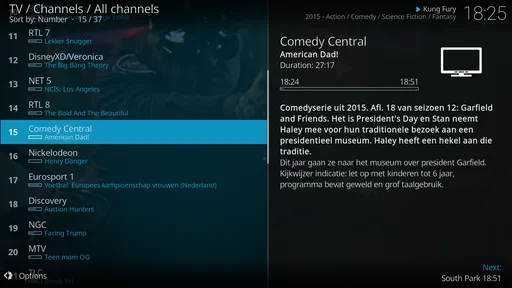
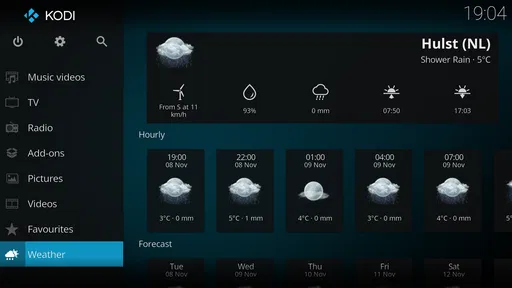
 Analysis by AppCompare
When I decide whether a media app deserves a place on a device I share with other people, I look beyond what it can play. I want to know how much setup it expects, what choices I can make, and whether I can keep the experience focused on the content I actually use. Kodi is an unusual fit: it can be a straightforward way to browse a personal collection, but its open-ended design also invites a lot of configuration. That freedom is useful, though it means the experience depends heavily on how carefully I set it up.
A media hub, not a ready-made streaming service
Kodi is a free media-player app from the Kodi Foundation, in the Video Players & Editors category. It is rated for Everyone, has a 3.7 average from around 340,000 ratings, and has been installed over 50 million times. Those figures suggest a broad audience, but they don’t tell me whether the app suits a particular household. The more useful question is whether you want a flexible place to bring media together or simply want to open a familiar service and press play.
Its central idea is to organize and play media from sources you choose. That can make it appealing if you have files spread across device storage and network locations, and would rather browse them in one interface than jump between separate players. It is less like a single subscription service and more like a configurable front end for your own media setup. I would not choose it expecting every source to be ready the moment the app opens.
That distinction matters for trust, too. Kodi’s open-source identity and its large community can make the project feel approachable, but neither fact by itself tells me what a particular add-on does or what permissions a device installation uses. I treat the main app and every optional component as separate choices. If privacy or account handling is a deciding factor, I check the current app permissions and the behavior of each service I plan to connect rather than relying on assumptions about the whole ecosystem.
Setup choices that shape the experience
The initial screen is a starting point, not a finished library. You need to point Kodi toward the places where your media lives and decide how you want to browse it. A small local collection may take only a little organizing; a library on a network drive asks you to think about access and whether that source is available whenever you want to watch. I find it helpful to start with one folder or source, confirm that browsing works, and only then add more. That simple sequence makes it easier to spot a path or access problem before it becomes a confusing library-wide issue.
On a shared television, setup deserves extra thought. A remote control is good for choosing a film but less convenient for entering paths, searching through settings, or sorting out an unfamiliar add-on. I would do the fiddly work with whatever input method is comfortable, then leave the device in a clean, predictable state for everyone else. A tidy home screen and a short list of sources can be more valuable to guests than every customization option being switched on.
There is no need to turn a personal collection into a complicated project. If your aim is to watch a handful of local videos, add only that source and learn the basic navigation first. If you later want network access or a different layout, you can explore those decisions separately. This gradual approach keeps the first experience manageable and gives you a clearer sense of whether Kodi’s flexibility is helping or simply adding work.
Worth Reading Before You Choose

Switching to Android Auto Means Rethinking Your Driving Routine

Google Calendar Makes a Crowded Week Easier to Manage

Baby Panda World Brings Quick Play to Modern Phones, but Its Game Library Feels Busy

ESPN’s Live Game View Makes Following Close Games Easier

QuizzLand Review: A Good Fit for Short Trivia Breaks, Not Every Player

Basketball Stars: Multiplayer Is Fast, but Can It Recover When Matches Go Wrong?
Add-ons call for a little judgement
Add-ons are among Kodi’s most attractive features because they let you extend the app beyond its basic media-player role. They are also the point where I would slow down. An add-on is not automatically trustworthy just because it appears alongside other options in a media center. Before installing one, I consider who provides it, what it is meant to access, and whether I genuinely need it. I avoid adding several at once: if something behaves unexpectedly, a short list makes the cause easier to identify.
There is a practical difference between installing a component for a clear purpose and collecting options because they are available. Extra add-ons can make the interface harder to navigate and create more things to maintain. For a family device, I would keep the setup especially conservative: add only sources everyone understands, test them myself, and remove anything that no longer serves a clear use. That is not a guarantee about any component; it is a sensible way to keep control of a system that is designed to be extended.
Kodi itself is free, and its current version is 21.2. The app supports Android 5.0 and later. Those details are useful when checking a device, but they do not mean every add-on or media source will behave the same way across different hardware. If your setup depends on a specific external service or file format, test that particular workflow before building your whole routine around it.
What I would check before connecting personal media
The most sensitive point is often not playback but the source you choose to connect. A folder on your own device, a network share, and an optional online service involve different kinds of access. I would add only sources I recognize, use the narrowest practical access available in the source’s own settings, and review the permissions the app requests on my device. If a prompt seems unrelated to the task I am trying to do, I would pause rather than approve it just to get past setup.
Account questions also depend on the source. Kodi’s basic role as a player does not make every service reached through an add-on part of one unified account system. When a component asks me to sign in, I check which service is asking and make that decision there. I would not enter credentials into an unfamiliar add-on simply because it promises convenient access, and I would remove a component if I no longer want it in my setup.
These are small habits, but they make a configurable app easier to manage. Keep track of what you added, make changes one at a time, and revisit the list occasionally. If you share the device, explain which sources are connected and avoid leaving an unfamiliar setup for another person to troubleshoot. The app gives you room to make choices; careful choices are what make that room useful.
Where Kodi feels different from simpler players
Compared with a built-in phone player, Kodi offers a more unified way to browse a curated collection and more room to customize how it looks. A basic player usually wins when you only need to tap a file and watch it with minimal setup. A dedicated streaming app may be the easier choice when your main goal is to watch that service’s catalog, manage its account, and avoid handling folders or add-ons. Kodi’s advantage is bringing chosen media sources together; its trade-off is that you may have to do the organizing and maintenance yourself.
That makes it a particularly good fit for someone who already keeps video or music files in an orderly collection, or who wants a television interface tailored to a known set of sources. It is also appealing if you enjoy adjusting a skin and shaping the home screen around what you use. On the other hand, if you expect a polished catalog to appear automatically, or you dislike troubleshooting paths and optional components, a simpler player is likely to feel more pleasant day to day.
One useful way to decide is to ask what you want to happen after installation. If the answer is “open my existing library and browse it from the couch,” Kodi may be worth the setup. If the answer is “give me one service’s shows with no configuration,” start with that service’s own app. Neither choice is universally better; the difference is whether you value control over convenience more in this particular situation.
A realistic evening setup
Imagine I have a television connected to a device in the living room and a folder of films on a network drive. I would first make sure the drive is available, add that one location, and check that the titles I expect are visible. Then I would spend a few minutes making the main screen easy to use from the sofa. I would leave add-ons alone unless I had a specific, legitimate reason to use one. The result is a focused library rather than a busy collection of features I may never touch.
If a film disappears from the listing, I would check the source and its availability before changing skins or installing another component. If playback works on the device but not through the network source, I would test the source connection separately. Keeping those steps distinct is a non-obvious but useful habit: it prevents a simple access issue from turning into unnecessary changes across the whole app.
For a household with different tastes, I would prioritize predictable navigation over deep customization. A distinctive skin can look appealing, but an unfamiliar layout may slow down someone who just wants to find a title. I would also show other users how to return to the main screen and where the regular library lives. A little orientation can make a flexible setup feel much less intimidating without requiring everyone to learn its settings.
My experience with Kodi
First things first, downloading and installing Kodi is a breeze. Whether you’re on Android or iOS, just head over to your app store, and you’ll find it waiting for you. Once installed, the app opens up to a clean interface that’s surprisingly easy to navigate, considering the sheer number of features packed into it.
Setting it up involves a bit of customization, but don’t worry, it’s all very intuitive. You can add your media sources, be it from local storage or network drives, and Kodi will organize everything neatly. It’s like having your personal media library right at your fingertips.
The Magic of Add-ons
Now, here’s where Kodi really shines: add-ons. Think of these as apps within the app, offering everything from streaming services to games. You can tailor Kodi to suit your entertainment needs, whether you’re a movie buff, music lover, or sports fanatic.
Installing add-ons is straightforward. Just navigate to the add-ons section, and you’ll find categories galore. The community around Kodi is huge, so there’s always something new to try. But remember, not all add-ons are created equal, so you might have to sift through a couple to find the gems.
Performance and User Experience
Performance-wise, Kodi is pretty smooth. I’ve used it on both a tablet and a TV box, and in both cases, it handled HD content without a hitch. It’s designed to be lightweight, so even older devices shouldn’t struggle too much.
The user experience is another highlight. The interface is highly customizable, so if you’re not a fan of the default look, you can easily change it up with different skins. This level of personalization is a huge plus in my book, letting you craft an experience that feels unique to you.
Is Kodi Right for You?
So, is Kodi the media player you’ve been looking for? If you love having control over your media experience and enjoy tinkering with settings and add-ons, then absolutely. It’s powerful, flexible, and backed by a community that’s always contributing new ideas and features.
That said, if you’re someone who prefers a more straightforward, plug-and-play experience, you might find Kodi a bit overwhelming at first. But don’t let that deter you; once you get the hang of it, you’ll be amazed at what this little app can do.
In the end, Kodi is more than just a media player; it’s a gateway to a personalized entertainment universe. Whether you’re streaming your favorite shows, listening to music, or diving into documentaries, Kodi makes it all possible from one convenient hub. Give it a try, and you might just find it’s the last media app you’ll ever need.
Pros
- Highly customizable interface.
- Supports a wide range of formats.
- Open-source and free to use.
- Integrates with numerous add-ons.
- Available on multiple platforms.
Cons
- Complex setup for beginners.
- Add-ons may face legal issues.
- Occasional stability issues.
- Limited support for streaming services.
- Resource-heavy on older devices.
FAQs for Kodi
What is Kodi and what can it be used for?
Kodi is a free and open-source media player application that allows users to play and view videos, music, podcasts, and other digital media files from local and network storage media and the internet. It is highly customizable with a variety of skins and plugins, which can enhance its functionality and provide access to content from various streaming platforms.
Is Kodi legal to use?
Kodi itself is completely legal to use. However, the legality comes into question based on how it is used. While Kodi provides access to a vast range of plugins and add-ons, some of these can access copyrighted content without authorization. It's important to ensure that you only use official add-ons or content for which you have the rights.
What platforms is Kodi available on?
Kodi is available on a wide range of platforms, including Android, iOS, Windows, macOS, Linux, and Raspberry Pi. This cross-platform availability makes it accessible to a broad audience, allowing users to enjoy their media library on virtually any device they own.
How do I install add-ons in Kodi?
To install add-ons in Kodi, you can navigate to the 'Add-ons' section from the main menu. From there, click on 'Download' to browse the official repository or select 'Install from Zip File' to install third-party add-ons. Always ensure you are installing add-ons from reputable sources to avoid legal issues and security risks.
Is Kodi safe to use, and how can I ensure my security?
Kodi is generally safe to use, but it is crucial to take precautions. Always download Kodi from the official website to avoid malware. Additionally, be cautious with third-party add-ons as they can pose security risks. Using a VPN can add an extra layer of security by keeping your online activity private and secure.


